
Result
What Weevar gives your AI agent.
When you copy from the Prompt tray, you get plain text formatted for the target tool you picked in Settings. This page shows the output for layout moves, for style tweaks, and for sessions that include both.
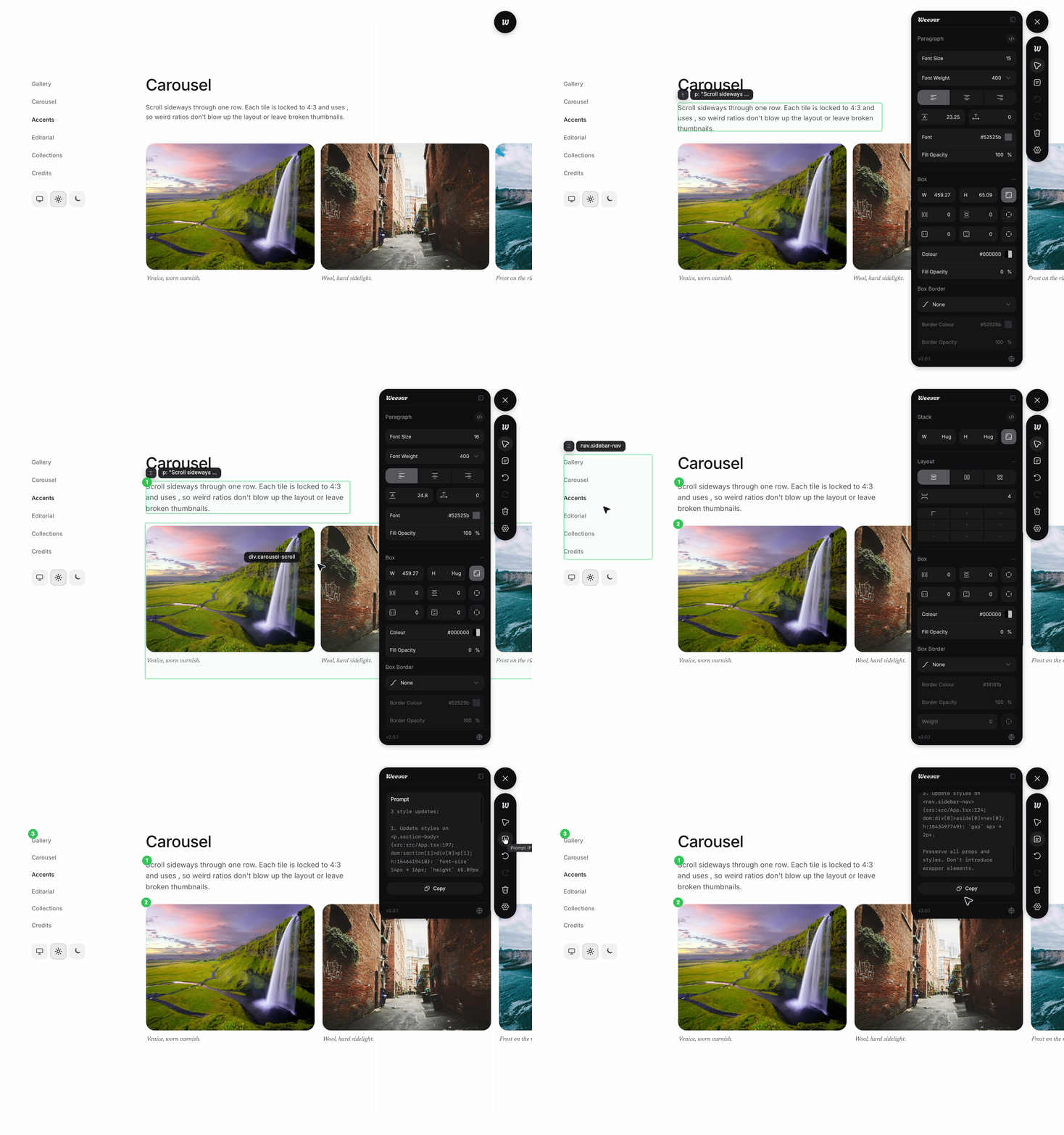
Two prompt styles#
- Short: Compact. The element, its before/after position or before/after style values, the new sibling order where relevant, and the constraints. Good for fast iteration.
- Detailed: A structured breakdown with markdown headings: file, container, layout type, the move or style change, new child order with line numbers, and explicit constraints. Good when you want the agent to be careful or when you're working on something fragile.
The same change is described in both styles, just at different levels of detail. Switch between them in the Settings tray.
Three target tools#
Weevar tailors the prompt format to the AI tool you're going to paste into:
- Claude Code: assumes the tool reads your codebase. Includes file paths.
- Codex: terser. Assumes the active editor already has the file open. Drops absolute paths in favour of
line Nreferences in the body. - Generic: tool-agnostic.
Pick whichever matches your workflow. The internal change data is identical; only the formatting differs.
Layout move prompts#
Reorder example (Short, Claude Code)#
You drag <SignInButton> from the second position in your nav to the last:
Reorder children of <NavBar> {src:src/components/NavBar.tsx:14; h:a3f9} in src/components/NavBar.tsx: move <SignInButton> {src:src/components/SignInButton.tsx:8; h:b21c} (line 18) from child index 1 (position 2) to child index 4 (position 5; last). Resulting order: 0: <Logo> | 1: <SearchInput> | 2: <NavLinks> | 3: <NotificationsBell> | 4: <SignInButton>. Preserve all props and nested structure unchanged.
Note what's there:
- A reference to the parent and the element with their source paths and content hashes
- The from-index, to-index, and a positional anchor ("last")
- The full new sibling order
- An explicit "preserve props and nested structure" constraint
Reorder example (Detailed, Claude Code)#
# Reorder within <NavBar>

**File:** src/components/NavBar.tsx
**Container:** <NavBar> at line 14 — `<nav className="flex gap-6 items-center">`
**Layout:** flex-row

## Move
<SignInButton /> (line 18)
From: index 1 (2nd child)
To:   index 4 (last child, after <NotificationsBell />)

## New child order
1. <Logo /> src/components/Logo.tsx:5
2. <SearchInput /> src/components/SearchInput.tsx:11
3. <NavLinks /> src/components/NavLinks.tsx:7
4. <NotificationsBell /> src/components/NotificationsBell.tsx:14
5. <SignInButton /> src/components/SignInButton.tsx:8   ← moved

## Constraints
- Preserve all props on <SignInButton>
- Don't modify the flex-row layout
- Don't introduce wrapper elements
- Don't touch other components in this file
Move example (Short, Claude Code)#
You drag <CTAButton> from the sidebar into the hero section:
Move <CTAButton> {src:src/components/CTAButton.tsx:4; h:c8e2} (line 22) from <Sidebar> {src:src/Sidebar.tsx:1; h:91d4} (src/Sidebar.tsx:1) (child index 0) into <Hero> {src:src/Hero.tsx:1; h:7af0} (src/Hero.tsx:1) at child index 2 (as the last child). Move the entire element subtree (3 element children); do not split or recreate nested nodes. Destination order after move: 0: <Headline> | 1: <Subheadline> | 2: <CTAButton>. Preserve all props and nested structure unchanged.
Move example (Detailed, Claude Code)#
# Move <CTAButton> across containers

**Source:** <Sidebar> in src/Sidebar.tsx:1 (flex-column layout)
**Destination:** <Hero> in src/Hero.tsx:1 (flex-column layout)

## Move
<CTAButton /> at src/components/CTAButton.tsx:4
Remove from: <Sidebar>, index 0
Insert into: <Hero>, index 2 (last)

## Subtree
<CTAButton> has 3 element children. Cut and paste the full subtree unchanged.
Child index refers to the container element, not its text content.

## Destination order after move
1. <Headline /> src/Headline.tsx:3
2. <Subheadline /> src/Subheadline.tsx:3
3. <CTAButton /> src/components/CTAButton.tsx:4   (moved)

## Constraints
- Preserve all props on <CTAButton>
- Don't modify <Sidebar> beyond removing the element
- Don't modify <Hero>'s layout or styling
- Don't introduce wrapper elements
Style tweak prompts#
Style tweaks describe changes you made in the Edit Tray. Each tweak captures the CSS property, its value before you changed it, and its value after. Multiple edits to the same element in one session are collapsed into a single entry covering all properties changed.
Style tweak example (Short, Claude Code)#
You select a paragraph, increase the font size and change the colour in the Edit Tray:
Update styles on <p.intro-text> {src:src/components/Hero.tsx:42; dom:section[0]>p[1]; h:-9f3c}: `font-size` 15px → 18px; `color` #666666 → #111111. Preserve all props and event handlers.
Note what's there:
- A DOM-first element reference using tag and class (
<p.intro-text>) — or the component name when one is available - Source location, DOM path, and content hash for precise identification
- Each CSS property changed, with its before and after values
- A constraint to preserve everything else on the element
Style tweak example (Detailed, Claude Code)#
# Style update on <p.intro-text>

**File:** src/components/Hero.tsx
**Element:** <p className="intro-text"> {src:src/components/Hero.tsx:42; dom:section[0]>p[1]; h:-9f3c}
**Element category:** text

## Style changes

| Property | From | To |
| --- | --- | --- |
| `font-size` | 15px | 18px |
| `color` | #666666 | #111111 |

## Tailwind suggestions
- `font-size` 18px → `text-lg`
- `color` #111111 → `text-gray-900`

## Constraints
- Preserve all other props and event handlers on this element
- Don't modify sibling or parent elements
Mixed sessions (layout + style)#
When a session contains both layout moves and style tweaks, Weevar batches them into a single prompt in the order they were made. The prompt header describes the full scope of the session so the agent knows what to expect.
Mixed session example (Short, Claude Code)#
3 changes (2 layout moves, 1 style update).
When a move lists element children on the target, cut and paste the full subtree unchanged.

[1] Reorder children of <nav.main-nav> {src:src/Nav.tsx:5}: move <button.sign-in> {src:src/SignIn.tsx:3} from child index 0 to child index 3 (last). Resulting order: 0: <a.home> | 1: <a.about> | 2: <a.docs> | 3: <button.sign-in>. Preserve all props and nested structure unchanged.

[2] Move <div.alert-banner> {src:src/Alert.tsx:1} (2 element children) from <header.site-header> {src:src/Header.tsx:2} (child index 2) into <main.content> {src:src/App.tsx:14} at child index 0. Move the entire element subtree; do not split or recreate nested nodes. Preserve all props and nested structure unchanged.

[3] Update styles on <h1.hero-title> {src:src/Hero.tsx:9}: `font-size` 32px → 40px; `font-weight` 400 → 700. Preserve all props and event handlers.
Mixed session example (Detailed, Claude Code)#
# 3 changes (2 layout moves, 1 style update)

Global constraint: When a move lists element children on the target, cut and paste the full subtree unchanged.

---

## Change 1 of 3 — Reorder within <nav.main-nav>

**File:** src/Nav.tsx
**Container:** <nav.main-nav> at line 5 — `<nav className="main-nav flex items-center gap-4">`
**Layout:** flex-row

### Move
<button.sign-in /> (line 8)
From: index 0 (1st child)
To:   index 3 (last child)

### New child order
1. <a.home /> src/Nav.tsx:6
2. <a.about /> src/Nav.tsx:7
3. <a.docs /> src/Nav.tsx:9  (position 3 — relative note: 1 after <a.about>)
4. <button.sign-in /> src/SignIn.tsx:3   ← moved

### Constraints
- Preserve all props on <button.sign-in>
- Don't modify the flex-row layout
- Don't introduce wrapper elements

---

## Change 2 of 3 — Move <div.alert-banner> across containers

**Source:** <header.site-header> in src/Header.tsx:2 (block layout)
**Destination:** <main.content> in src/App.tsx:14 (block layout)

### Move
<div.alert-banner /> at src/Alert.tsx:1
Remove from: <header.site-header>, index 2
Insert into: <main.content>, index 0 (first)

### Subtree
<div.alert-banner> has 2 element children. Cut and paste the full subtree unchanged.

### Constraints
- Preserve all props on <div.alert-banner>
- Don't modify <header.site-header> beyond removing the element
- Don't modify <main.content>'s layout or styling

---

## Change 3 of 3 — Style update on <h1.hero-title>

**File:** src/Hero.tsx
**Element:** <h1 className="hero-title"> at line 9
**Element category:** text

### Style changes

| Property | From | To |
| --- | --- | --- |
| `font-size` | 32px | 40px |
| `font-weight` | 400 | 700 |

### Tailwind suggestions
- `font-size` 40px → `text-4xl`
- `font-weight` 700 → `font-bold`

### Constraints
- Preserve all other props and event handlers on this element
- Don't modify sibling or parent elements
Codex variant#
The Codex format drops absolute file paths inside the body and uses line N references instead. The header still names the file. This applies to both layout and style entries.
When source location is missing#
If the bundler plugin isn't installed, prompts fall back to:
- DOM tag and class references (
<div.card-grid>) instead of component names - DOM path tails (
section[0]>div[2]) instead offile:line - A friendly hint at the bottom: Tip: install
weevar/vitefor source-accurate prompts.
The prompt is still copy-pasteable and actionable; it's just less precise.
Tailwind classes inline#
When Tailwind is detected, the parent container's className appears verbatim in Detailed layout prompts:
**Container:** <nav> at line 14 — `<nav className="flex gap-6 items-center">`
For style tweaks, Detailed prompts also include a Tailwind suggestions block with the utility classes that most closely map to the changes made. This gives the agent the option to apply the change via utilities rather than inline styles.